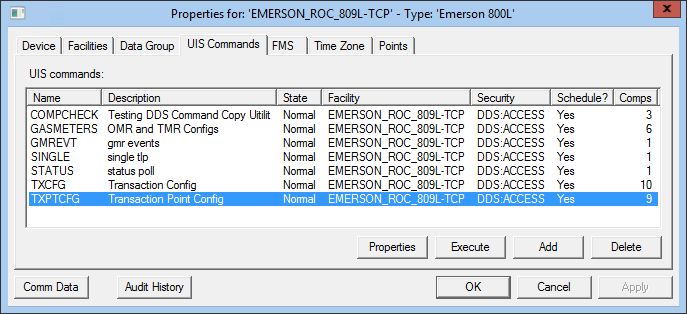
Use the UIS Commands page to view, select, and modify UIS commands for a specific remote device.
Click the following image to see an example UIS Commands page:
See the following subsections below for more information:
For more information, see UIS Commands.
The following table lists and describes UIS Commands page properties.
| Property | Description |
|---|---|
|
Name |
The name of a UIS command. |
|
Description |
Brief description of a UIS command. |
|
State |
The state of the UIS command. Options include:
|
|
Facility |
The name of the facility a particular UIS command applies to. |
|
Security |
Security application and event used to validate users of a UIS command. |
|
Schedule? |
Indicates whether it is possible or not to schedule this command in the Master Scheduling Service (MSS). |
|
# Comps |
Indicates the number of command components for the corresponding command. |
|
Properties |
Highlight a UIS command and click this button to view and edit properties for that command. |
|
Execute |
Highlight a UIS command and click Execute to perform the selected command. |
|
Add |
To add a new, blank UIS command, click in the UIS Commands white space and click Add. A blank UIS Command Properties dialog box appears. Configure as needed. To use an existing UIS command as a template, highlight a command from your UIS Commands list, then click Add. A populated UIS Command Properties dialog box appears. Configure as needed. |
|
Delete |
Delete unwanted UIS commands. |
|
Comm Data |
Enables you to open a modeless Communications Data Viewer dialog box. |
|
Audit History |
Enables you to view the audit trail for the device. |
The UIS Command Properties dialog box appears when you select the Properties button on the UIS Commands dialog box. Use it to add and edit UIS commands for a specific remote device.
Click the following image to see an example UIS Command Properties dialog box:
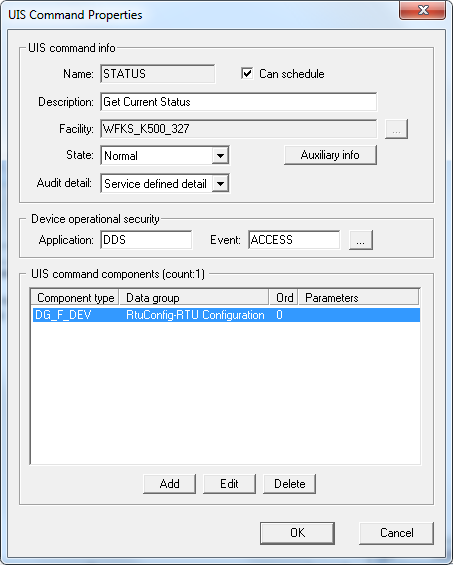
The following table lists and describes UIS Command Properties page properties.
| Property | Description |
|---|---|
| UIS command info | |
|
Name |
The name of the UIS command. Use standardized command naming within a remote device and from remote device to remote device. Without standardized naming, scheduling becomes convoluted and templated CygNet Studio screens are not possible. Up to 10 characters. Spaces allowed. Recommended characters are capital letters, numbers, dashes (-), and underscores (_). |
|
Can schedule |
Indicates whether it is possible or not to schedule this command in the Master Scheduling Service (MSS). |
|
Description |
Brief description of the UIS command. |
|
Facility |
The name of the facility a particular UIS command applies to. |
|
State |
The state of the UIS command. Options include:
|
|
Click to modify Auxiliary information for this UIS command. Options include:
|
|
|
The Audit detail options listed below are used to filter the level of detail in audit records as they appear in the Audit Service (AUD). Service-Defined Detail is the default option and sets auditing for this UIS command to that specified in the UIS configuration file. However, the other four options override the audit level and/or detail settings in the UIS configuration file for only the UIS command of which they are a property. This is useful if you want to make UIS command auditing changes on a command-by-command basis. The options are as follows:
For more information, see the Service Audit Levels topic subsection for the UIS. |
|
|
Device operational security |
|
|
Application |
Security application used to validate users of the UIS command. |
|
Event |
Security event used to validate users of the UIS command. |
| UIS command components | |
|
Component type |
The short name of a command component. Component types are selected from the Component Type drop-down menu on the Edit Command Component dialog box. |
|
Data group |
The name of the data group to which the particular component type applies. |
|
Ord |
The ordinal number of an instance of a data group to which the particular component type applies. |
|
Parameters |
Displays parameters when values are entered for a given component type on the Edit Command Component dialog box. |
|
Add |
To add a new, blank UIS command component, click in the UIS Command Components white space and click Add. Configure as needed. To use an existing UIS command component as a template, highlight a command component from your UIS Commands Components list, then click Add. Configure as needed. |
|
Delete |
Delete unwanted command components. |
|
Edit |
Highlight an already-existing UIS command component and click Edit to edit the command component. |
The Edit Command Component dialog box appears when you select the Add or Edit button on the UIS Command Properties dialog box. Use it to add and edit UIS commands for a specific remote device. Also use it to define parameters for the selected data group to which this command applies.
Click the following image to see an example Edit Command Component dialog box:
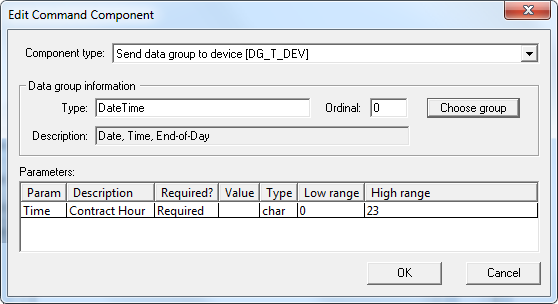
For information about EIE-specific UIS command component parameters, see topics called UIS Command Component Parameters within their respective Remote Devices subsections.
The following table lists and describes Edit Command Component page properties.
| Property | Description |
|---|---|
|
Component Type |
This drop-down menu displays all available UIS command components for a given remote device. |
|
Data group information |
|
|
Type |
The type of data group selected after using the Choose Group button and list or indicates the data type for the corresponding parameter. |
|
Ordinal |
The ordinal of the data group to which this command component applies. |
|
Choose group |
This button opens a Choose Data Group dialog box that enables choosing any of the data groups already added to your remote device. |
|
Description |
The description of the selected data group in the Type field or description of a parameter. |
| Parameters | |
|
Param |
Predefined parameter(s) for the selected component type and data group. |
|
Description |
A description of the parameter. |
|
Required |
Indicates whether a parameter is required (Yes), not required (No), or optional. |
|
Value |
The user-defined value. Depends on the parameter and user specifications. |
|
Low range |
For parameters that have values that fall within a range, the low end of the range. |
|
High range |
For parameters that have values that fall within a range, the high end of the range. |

|
|
|

